

The main causes of a printer that no longer prints are
When your printer refuses to print a page, frustration can quickly mount. There are many reasons why a printer might not print, even when it appears to be in good working order. Below, we’ll delve into the most common causes and how to identify them. Indeed, before embarking on costly repairs, it’s essential to diagnose the problem correctly.
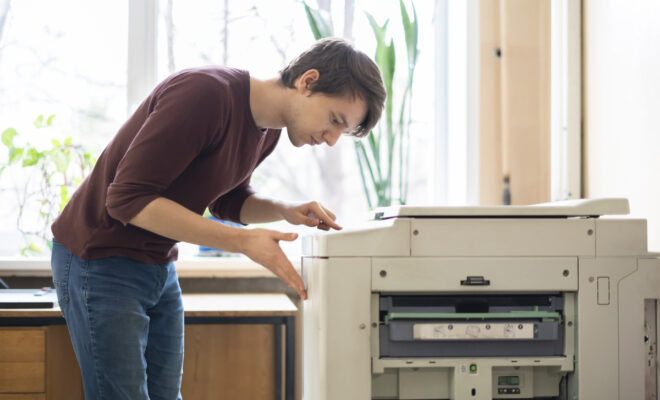
- Ink cartridge problems: Ink cartridges are often the cause of printing malfunctions. Whether they are empty or dry, this prevents the printer from working. And even if a cartridge appears full, a manufacturing defect or an installation problem can prevent it from delivering ink.
- Connection problems: An improper connection to the computer, either via USB cable or a poorly configured Wi-Fi network, can lead to printing failures. In some cases, an unstable network can also prevent printing.
- Outdated printer drivers: Drivers are essential for your computer and printer to communicate properly. If they are too old or corrupted, the printer will not respond to your print commands.
By carefully examining these problems, you will increase your chances of getting your equipment working again without outside intervention.
How ink cartridges can affect your printing
Ink cartridges, whether for HP, Canon, or other brands like Epson and Lexmark, play a crucial role in the printing process. But how can you tell if they’re the problem? Here are a few indicators:
| Indicator | Consequence |
| Empty cartridge | Unable to print |
| Cartridge lifespan exceeded | Degraded print quality |
| Cuts in the text | Clogged printer nozzle |
To avoid these cartridge-related problems, regular monitoring is recommended. For example, don’t leave your cartridges idle for too long. Using the printer for simple print jobs can extend the life of the print heads.
Diagnosing the printer: the steps to follow
Before attempting any repairs, it’s crucial to diagnose the problem to identify its source. Here are a few simple steps to follow to determine what’s wrong with your printer:
- Check the condition of the cartridges: Make sure they are correctly installed and full. A helpful tip is to gently shake the cartridge to check if the ink is flowing properly.
- Check the connection: For a USB printer, check that the cable is not damaged. For wireless models, access the Wi-Fi settings on the printer to ensure it is connected to the correct network.
- Test the diagnostic buttons: Most printers offer a direct print test. This helps identify whether the problem originates from the computer or the printer itself.
These preliminary checks can save a lot of time and money. Indeed, in most cases, users find that a simple restart or a connection card check resolves the issue.
Understanding the role of printer drivers
Printer drivers are very important software: they allow the computer to communicate with the printer. But when these drivers become outdated, it can cause various printing problems. Here’s how to make sure your drivers are up to date:
| Brand | Update method |
| HP | Visit the HP Tools website and select your model for updates. |
| Canon | Use Canon Setup software to search for and install updates. |
| Epson | Download the utilities from the Epson website to update. |
It is advisable to regularly check for new driver versions to optimize your printer’s performance. In 2025, manufacturers continue to release crucial updates to improve the functionality of modern printers.
Common solutions to get your printer working again
Once you’ve diagnosed the cause of the problem, it’s time to take action. Here are some typical solutions to restore your printer’s functionality:
- Cartridge replacement: If you notice that a cartridge is too old or damaged, it’s time to replace it.
- Printer reset: Turn off the printer, unplug it for a few minutes, then restart.
- Driver update: As mentioned previously, download the latest version available from the manufacturer’s website and reinstall the drivers.
These solutions are often sufficient to resolve printing problems. In a world where printing is a daily occurrence, knowing how to deal with these issues is a valuable asset.
Configure your printer correctly
Another source of problems lies in the printer configuration. A simple parameter error can be enough to block all printing. Here are some recommendations:
| Setting | Recommended actions |
| Connection method | Make sure the printer is on the same network as the computer. |
| Print status | Check that it is not in offline mode. |
| Print quality | Set the settings to ‘normal’ and not ‘ink saving’ for the first print. |
These steps ensure that all choices made during printing are optimal. Minor details can have a significant impact on printer performance.
Preventing printing problems in the future
To avoid these problems recurring, a few best practices can be implemented. Here are some tips to follow to ensure your printer functions properly:
- Regular maintenance: Cleaning the printer and preventively replacing cartridges can avoid many problems.
- Driver check: Make it a habit to check for driver updates regularly to avoid incompatibilities.
- Regular use: Don’t wait months before using your printer. Regular test prints prevent the ink from drying out.
These measures will help extend the life of not only your printer, but also your ink cartridges. It’s a small investment of time that can make a huge difference over the months.
Specifics depending on the type of printer
Troubleshooting methods may vary depending on your printer model. Brands like Brother, Samsung, and Xerox each have their own specific characteristics. Here’s an overview of printer types and common problems:
| Printer type | Common problems |
| Inkjet | Clogged nozzles and overly dried ink. |
| Laser | Toner problems and reduced print quality. |
| Multifunctional | Software errors impacting several functions. |
By knowing the weaknesses and potential problems of your specific printer, you will be better prepared to handle breakdowns.
FAQ
How do I know if my cartridge is empty?
You can check the ink level via your printer’s software or consult the printer’s control panel if it is equipped with one.
Why is my printer offline?
This may be due to a poor network connection or incorrect settings. Make sure the printer is connected to the same network as your computer.
Are printer drivers really necessary?
Yes, without drivers, your computer cannot communicate properly with your printer. Make sure you always keep them updated.
What should I do if my printer prints in black and white when I want it in color?
Check your print settings to ensure that the color printing option is selected.
How often should I change my ink cartridges?
It depends on your usage, but replacing it every two to three months is a good starting point.


You should participate in a contest for probably the greatest blogs on the web. I’ll suggest this site!